
How to Always See Context Percentage in Claude Code
“You can’t manage what you can’t measure” - Peter Drucker
Claude Code lets you customize a “status line” that updates after each command. Status line configuration
I run the /context command all the time. If you don’t know why you need to watch your context, read my article Your CLAUDE.md Doesn’t Work (without Context Engineering)
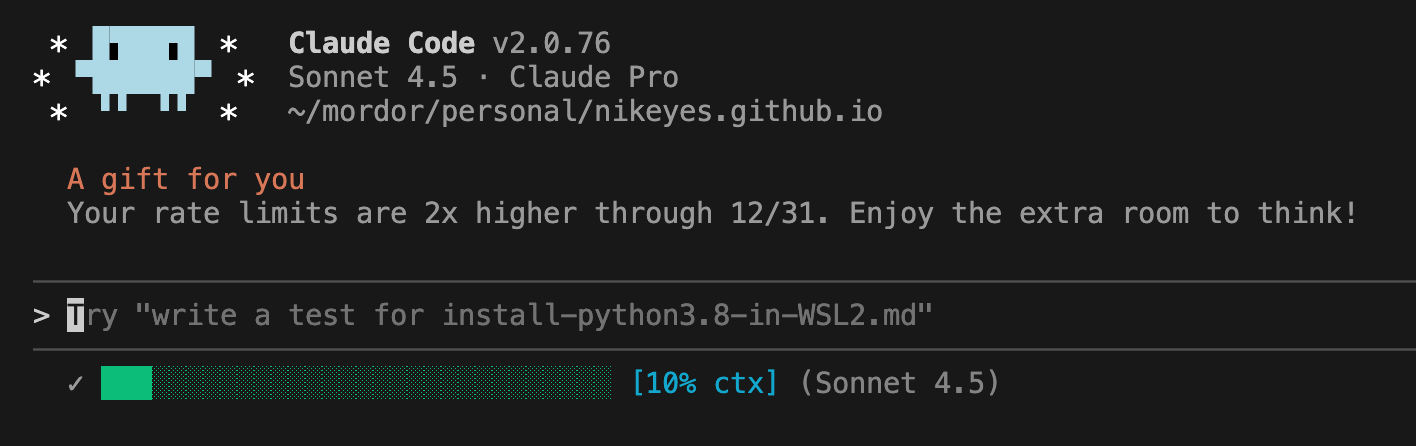
The /context command is slow and breaks my workflow, so I created a status line to see context status in real-time.
Green (<40%)

Yellow (40-60%)

Red (>60%). With warning ⚠️ at 70% because you are close to auto-compact, if you have it enabled.

Installation
1. Install jq (JSON processor)
# macOS
brew install jq

# Linux (Ubuntu/Debian)
sudo apt-get install jq
2. Download the script
mkdir -p ~/.claude
curl -o ~/.claude/statusline.sh https://raw.githubusercontent.com/nikeyes/claude-code-config/main/statusline.sh
chmod +x ~/.claude/statusline.sh
3. Configure Claude Code
Add this configuration to the ~/.claude/settings.json file
{
  "statusLine": {
    "type": "command",
    "command": "~/.claude/statusline.sh",
    "padding": 0
  }
}
Example: https://github.com/nikeyes/claude-code-config/blob/main/settings-personal.json#L14
4. Restart Claude Code
Done. Now you can see your context percentage at all times.
Note about auto-compact
I have context auto-compact disabled. If you have it enabled, Claude Code reserves 22.5% of context for compacting. So when you reach 77% context, it will auto-compact.
I use the stepwise-dev plugin and never compact. I control context at each step and clear the entire context in each phase: Research → Plan → Implement Phase X → Validate.